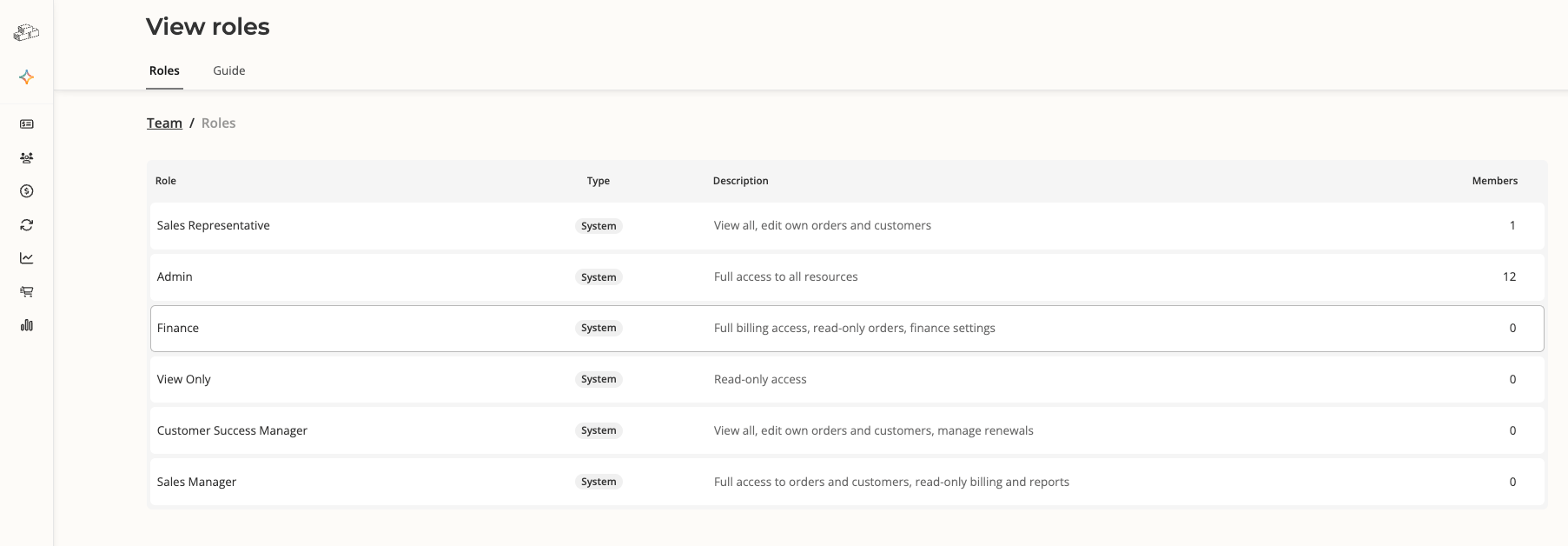
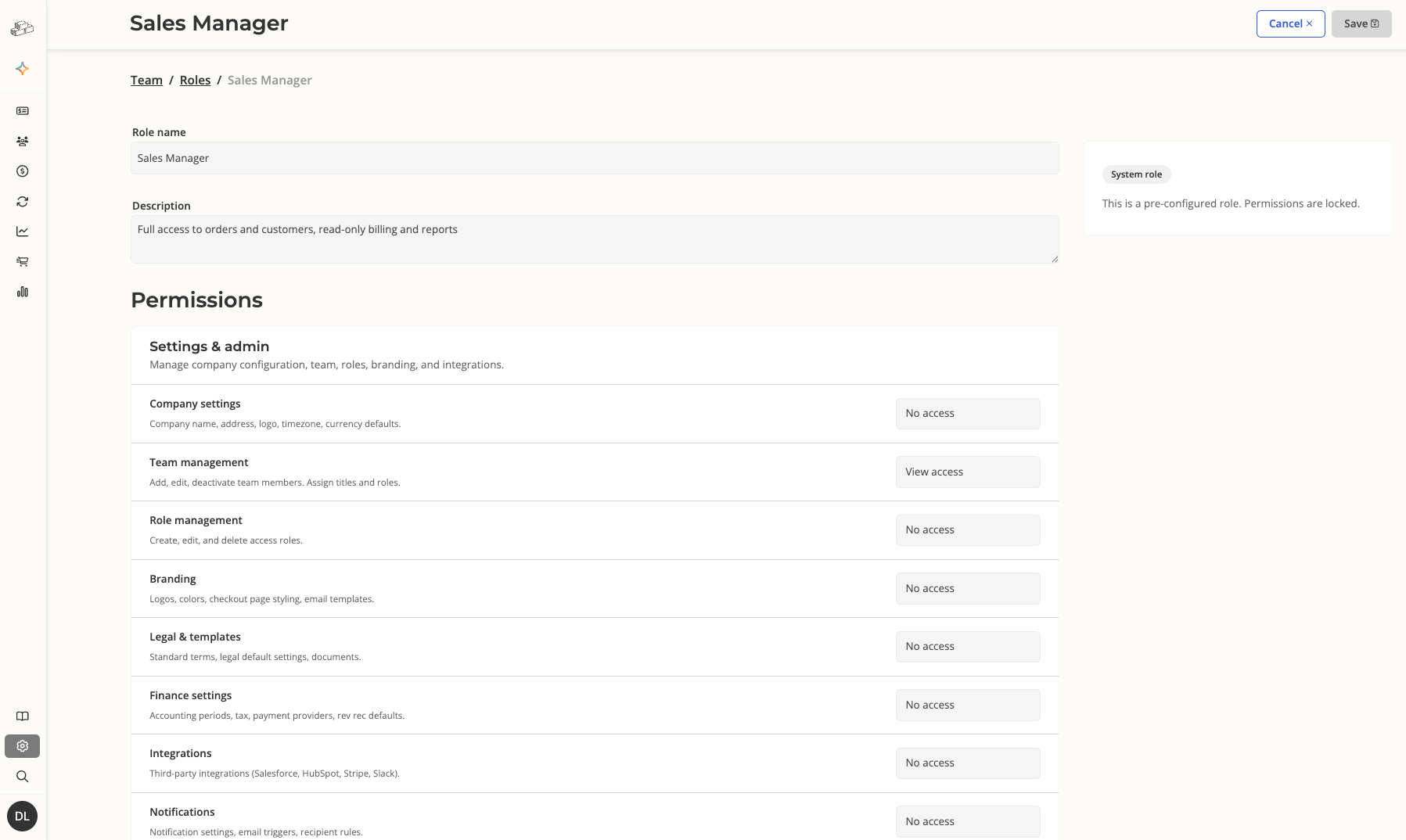
Role-based access control (RBAC) lets you define exactly what each team member can see and do inside Salesbricks.Instead of granting every user full admin access, you assign each person a role that matches their job function. Salesbricks ships six built-in system roles (read more below) and enforces those permissions automatically across every part of the platform — orders, customers, billing, products, reports, and settings.
RBAC must be enabled on your Salesbricks seller org. Settings tabs and buttons that depend on RBAC will be hidden or disabled until the feature is active.
Note: If you do not see a “View roles” button at the top of the Team Settings page, reach out to Salesbricks Support to enable this feature.
To set up roles for your team, your Salesbricks user must have the Admin role, or a role with full access to Team management and Role management permissions, to invite team members and change role assignments.
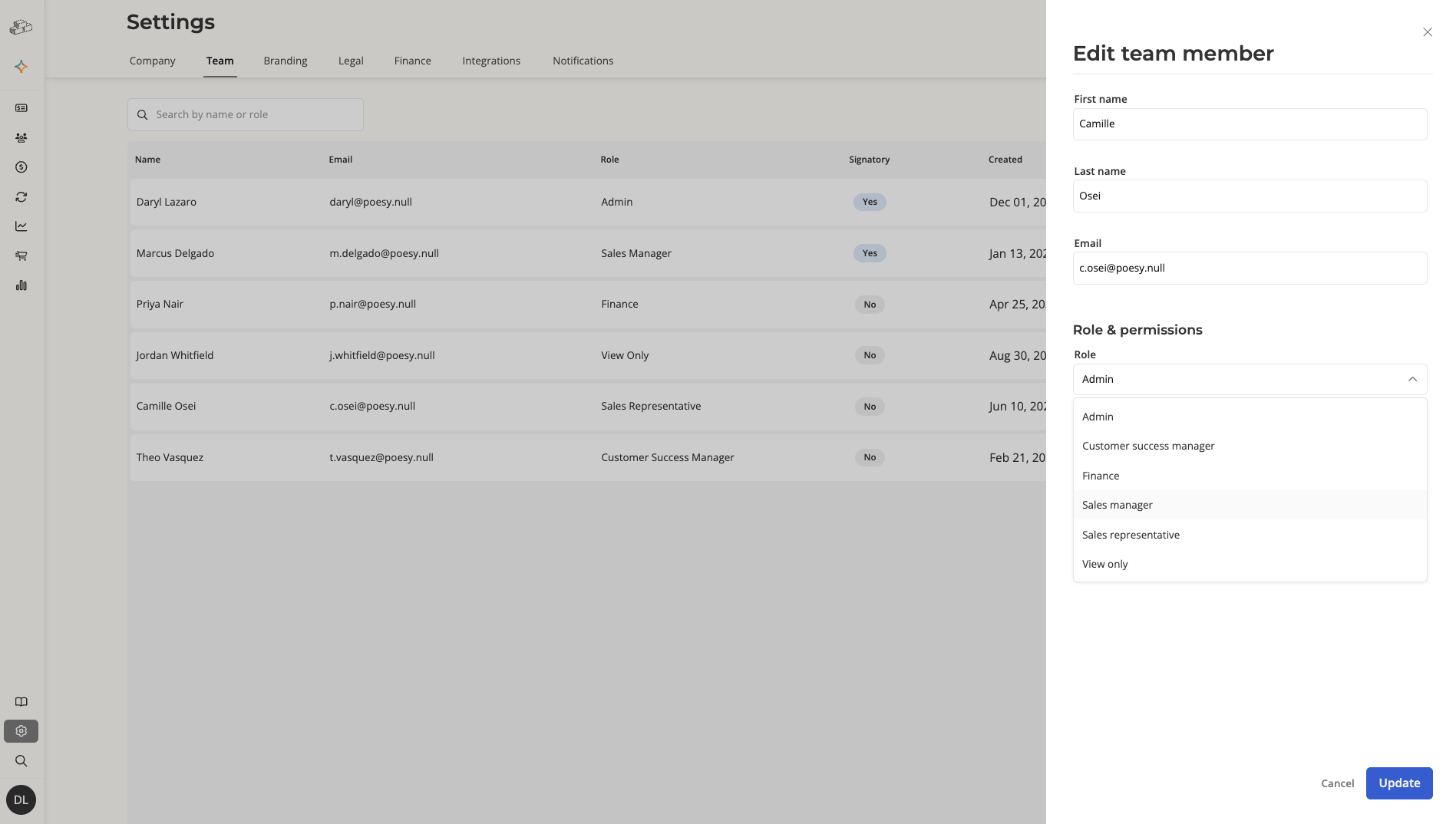
Select a different role and save to update the team member's permissions immediately.
Only users with full access to Team management and Role management permissions (e.g. Admins) can see and use the Edit button. If the button is hidden or disabled, you do not have sufficient permissions.
1
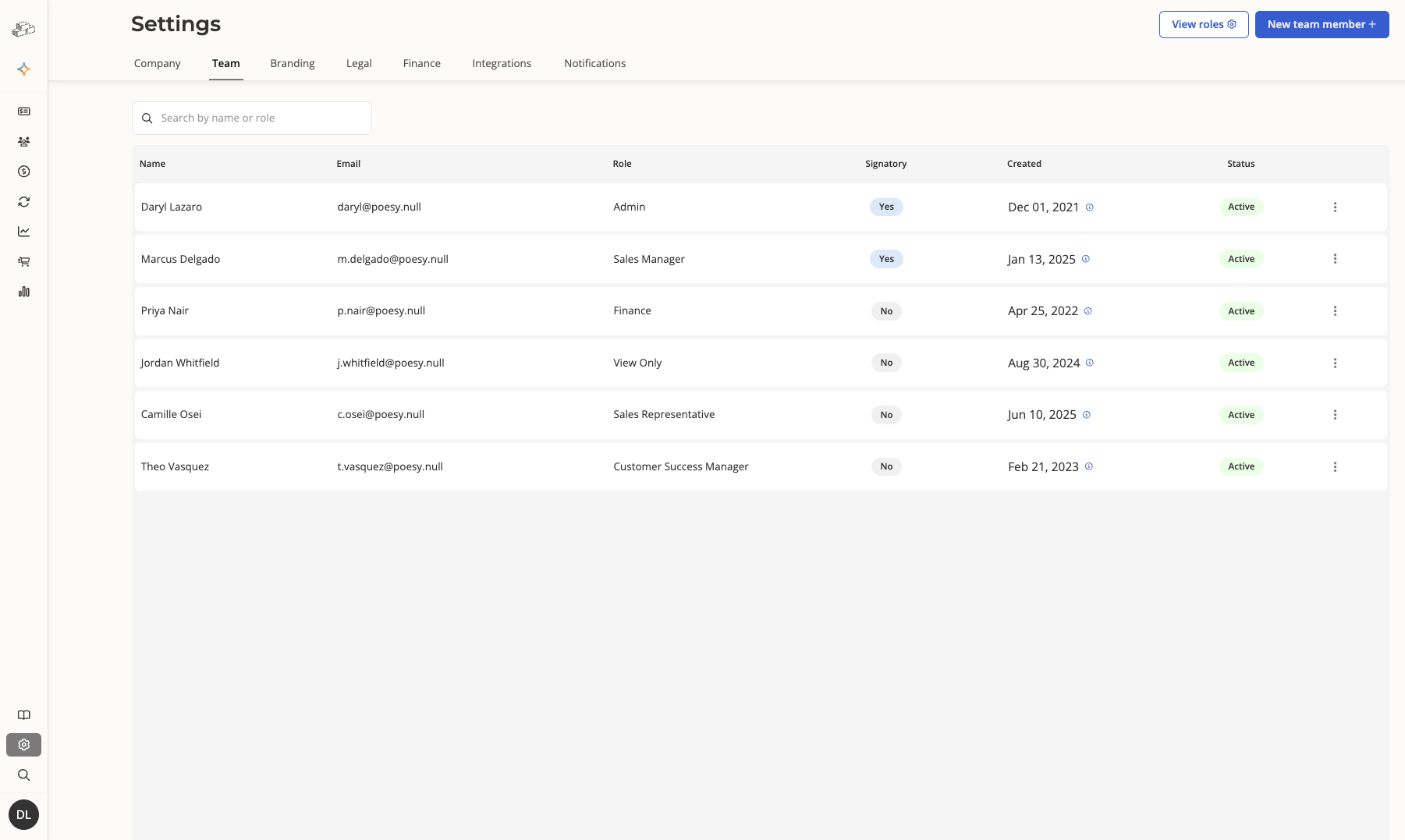
In Settings -> Team, find the team member in the table. Click the row to open and edit their profile.
2
Select the new role in the Role dropdown.
3
Update any other fields as needed and click “Save”.
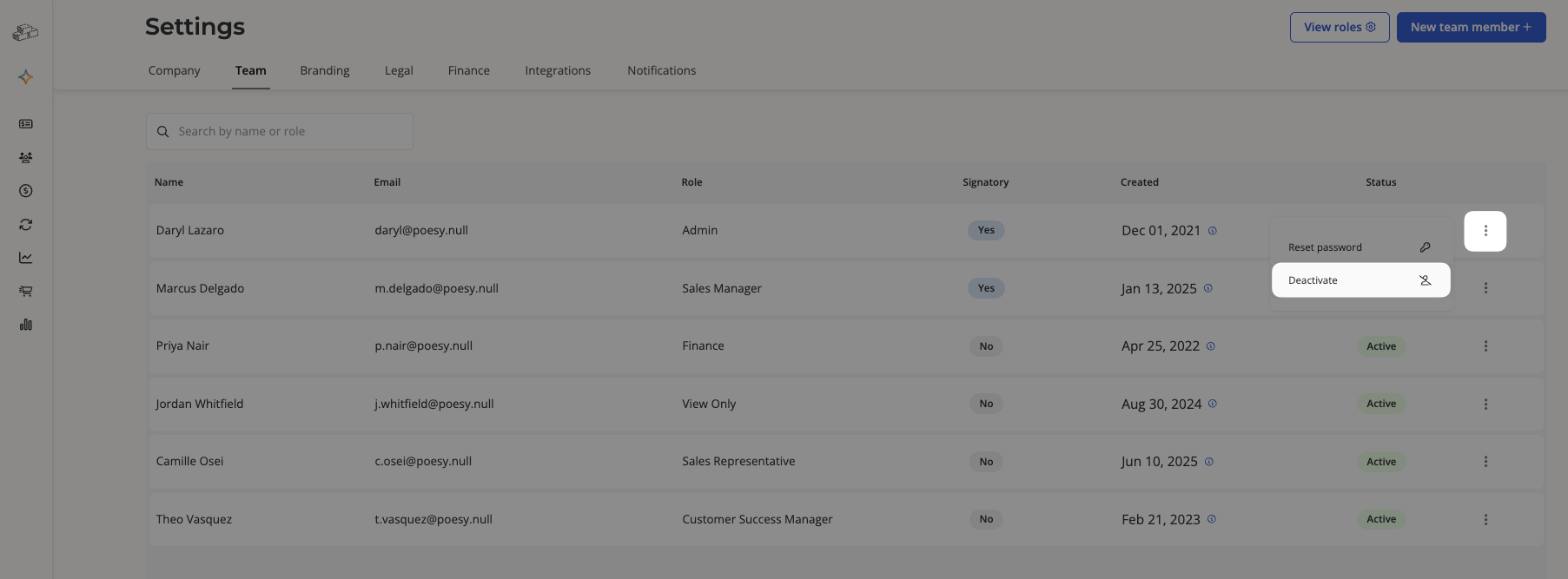
In Settings -> Team, click the action menu on the right side of the team member’s row.
2
Select “Deactivate” to revoke the user’s access immediately.
Deactivating a team member does not delete their historical data — their orders, customers, and other records they created in Salesbricks remain intact.Admins may reassign a deactivated user’s open orders and active subscriptions to new account representative under Customers.Their user account can be restored by reaching out to Salesbricks Support.
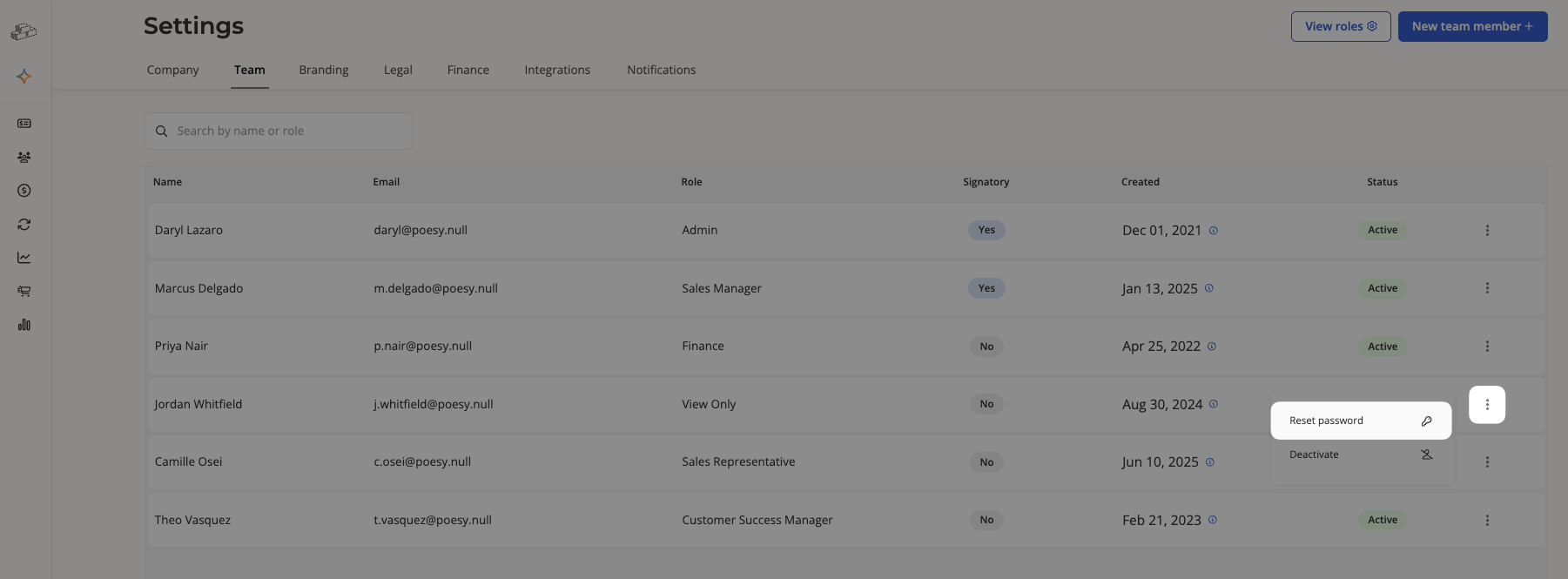
In Settings -> Team, click the action menu on the right side of the team member’s row.
2
Select “Reset password.”Salesbricks sends a password reset email to the email address the team member uses for login. If successful, a confirmation dialog appears, along with the email address for verification.
Custom roles are on the roadmap. At launch, only the six built-in system roles are available.
What happens if I assign someone the View Only role by mistake?
A user with the proper access can edit the team member and select the correct role. Permission changes take effect immediately on the user’s next page load.
Who can see the full team list?
A user with the proper access can see all team members. Users with more restricted roles, such as View Only, can only see their own record.
Does RBAC apply to the Salesbricks API?
API token requests run with full Admin permissions and are not restricted by role assignments.
Assistant
Responses are generated using AI and may contain mistakes.