

Overview
Salesbricks allows you to connect with your Salesforce org so you can:- Create a new Order in Salesbricks
- Sync metadata from the Salesbricks Order to an associated Opportunity in Salesforce
- Sync metadata from the Salesbricks Customer to an associated Account in Salesforce
- Establish a repeatable process for future agreements between you and your customer
- Connect your Salesforce instance to Salesbricks
- Create the fields in Salesforce needed to host the Salesbricks data
- Map the Order fields in Salesbricks to the Opportunity fields you created in Salesforce
- Map the Customer fields in Salesbricks to the Account fields you created in Salesforce
- Test a Salesbricks Order with a test Salesforce Opportunity, and confirm the data is flowing properly
Setup Salesforce Custom Fields
-
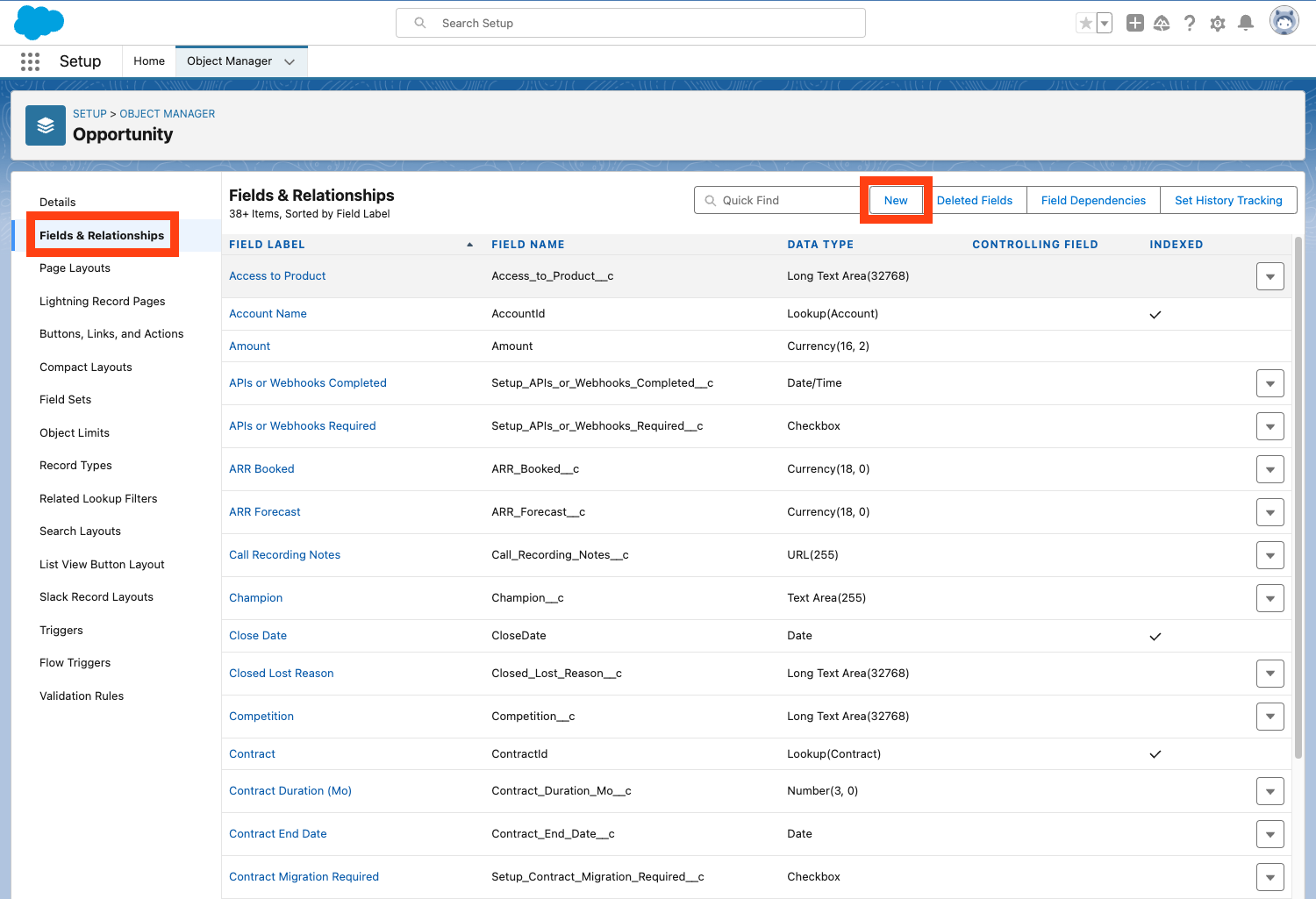
Navigate to Setup:
- Click the gear icon in the top right corner
- Select “Setup”
-
Review and Create Fields:
- In the left sidebar, go to “Object Manager”
- Search for and select either “Opportunity” or “Account”
- In the left sidebar, click “Fields & Relationships”
- Review existing fields to see if they match your needs
- If needed, click “New” to create custom fields
-
Field Types Available:
- Text fields (e.g., Name, Legal Name)
- Currency fields (e.g., Total Contract Value, Expected Renewal Value)
- Picklist fields (e.g., Status with options: Active, Inactive, Terminated)
- Date fields (e.g., Customer Since Date, Next Renewal Date)
You can use existing fields that match your needs or create new ones. Refer to the field mapping section below to determine which fields you need and their appropriate data types.For detailed instructions on creating and managing fields, see the Salesforce Fields Documentation.
Connect Salesforce in Salesbricks
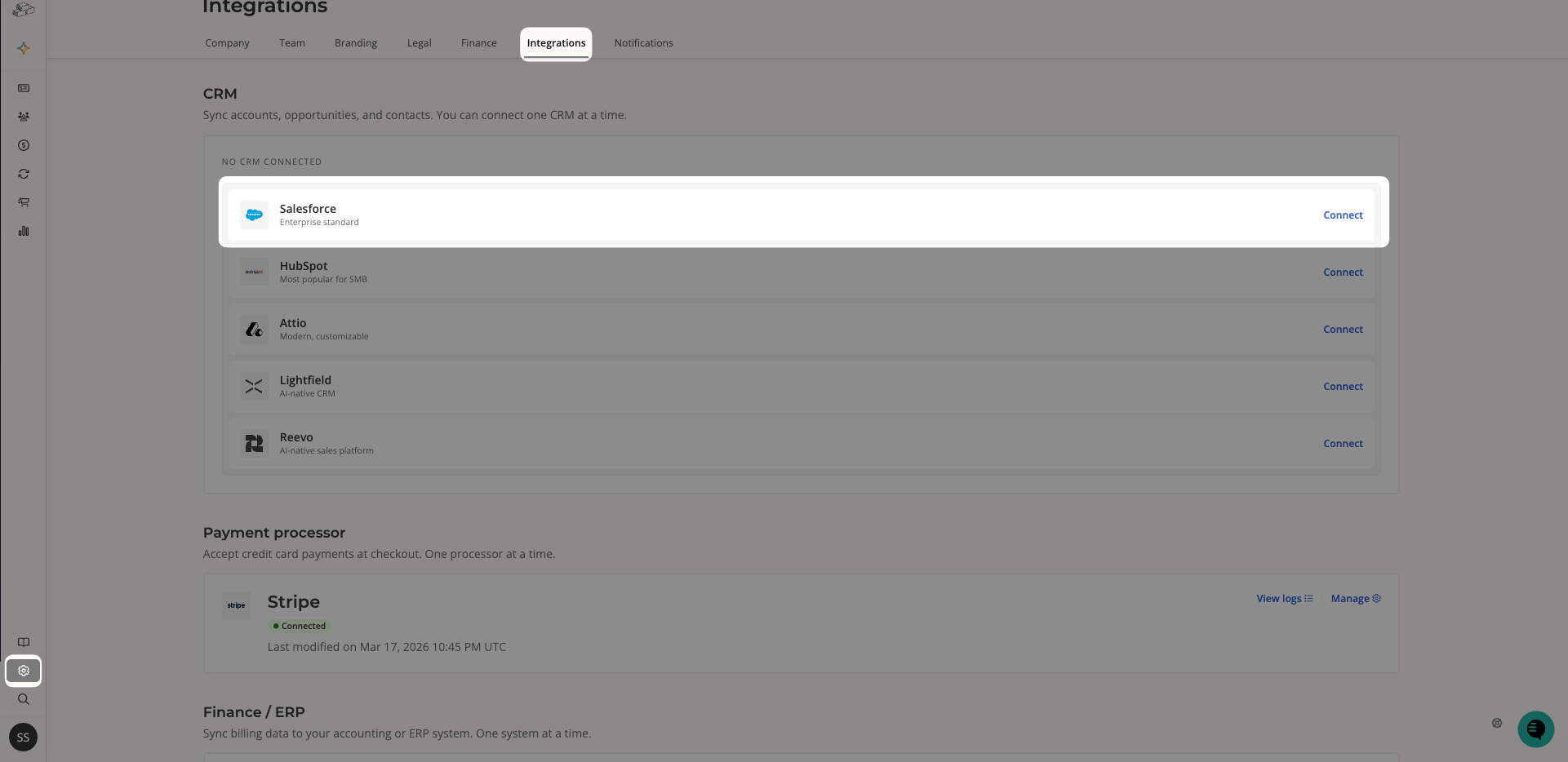
1. Connect Salesforce
1. Connect Salesforce
In Salesbricks, go to Settings -> Integrations and click on Salesforce.If this is your first time connecting Salesforce to Salesbricks, a modal will appear prompting you to connect your Salesforce account. Click “Connect.”
2. Select Integration Level
2. Select Integration Level
After you log in to Salesforce, you will return to Salesbricks where the next screen allows you to select the integration level between your Salesbricks and Salesforce accounts (“Basic” is selected by default).Select your integration level and click “Next.”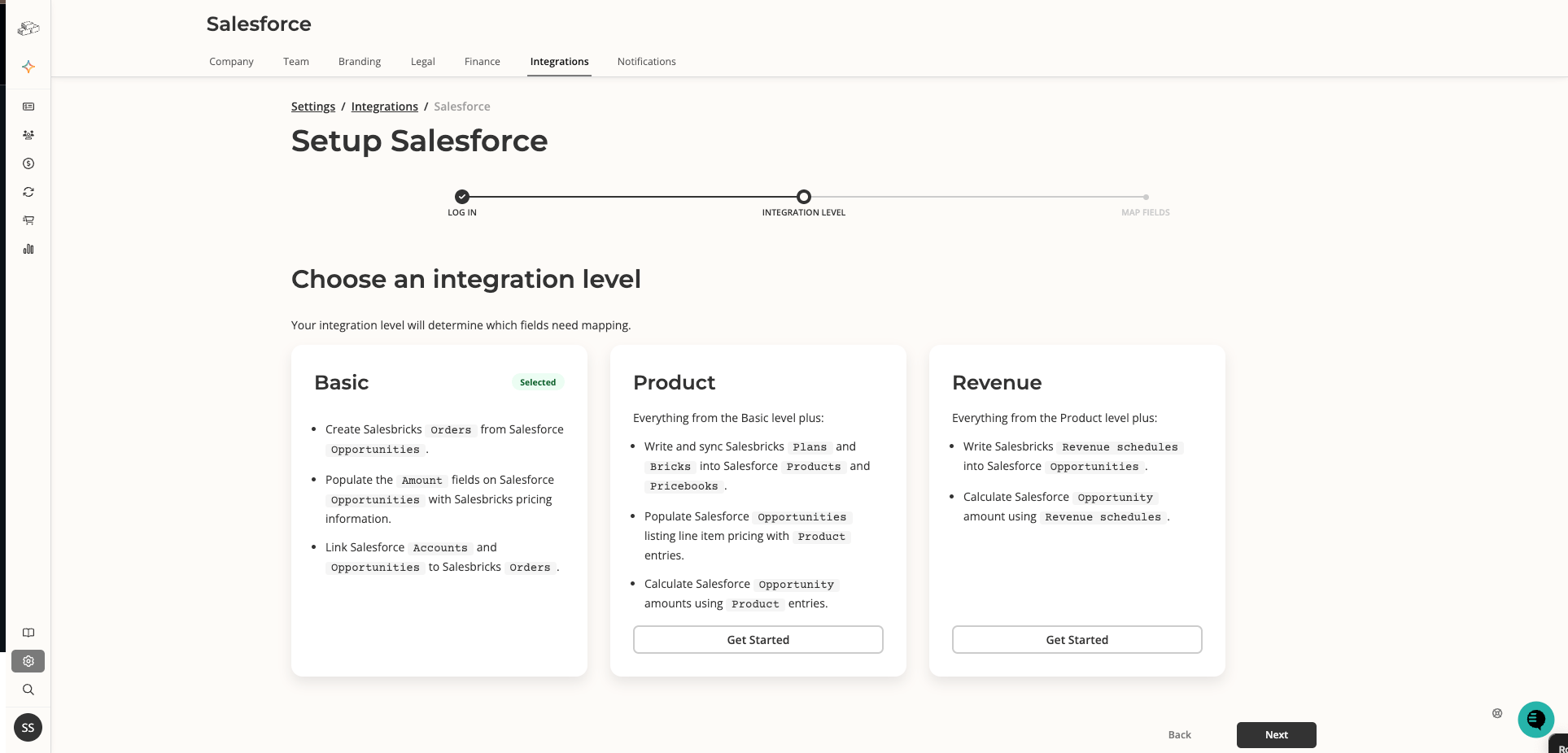
3. Map Order Fields
3. Map Order Fields
Map the fields you would like to push from Salesbricks Orders to Salesforce Opportunities.Click the “Add a field” button to add new rows, or the X icon on the right side of a row to delete it.Click “Save.”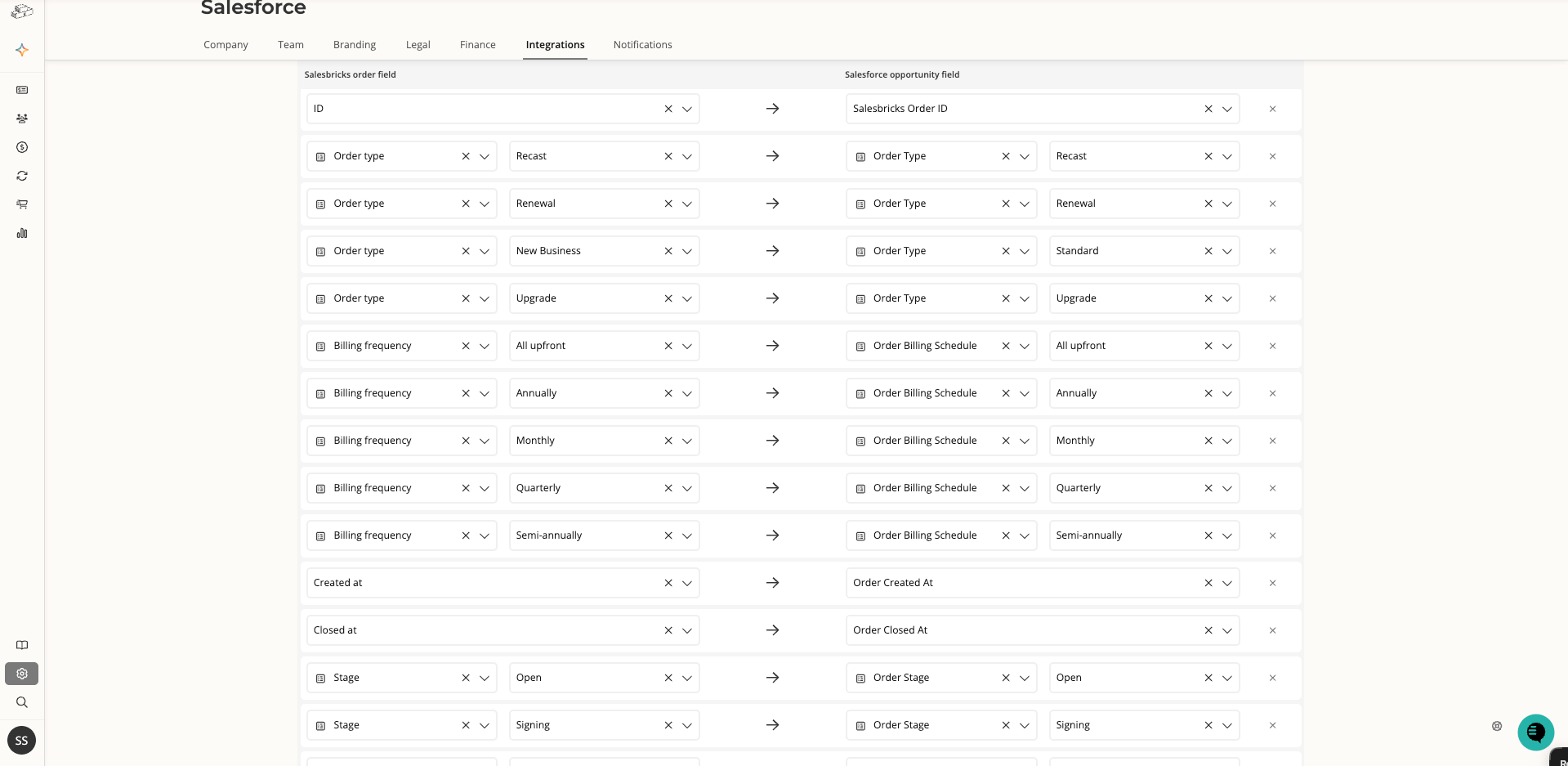
4. Map Customer Fields
4. Map Customer Fields
Next, map the fields you would like to push from Salesbricks Customers to Salesforce Accounts.Click the “Add a field” button to add new rows, or the X icon on the right side of a row to delete it.Click “Save.”
5. Test the Integration
5. Test the Integration
1
Create a test Opportunity in Salesforce
In Salesforce, create a new Opportunity and save it.
2
Create a new Order in Salesbricks
In Salesbricks, create a new Order.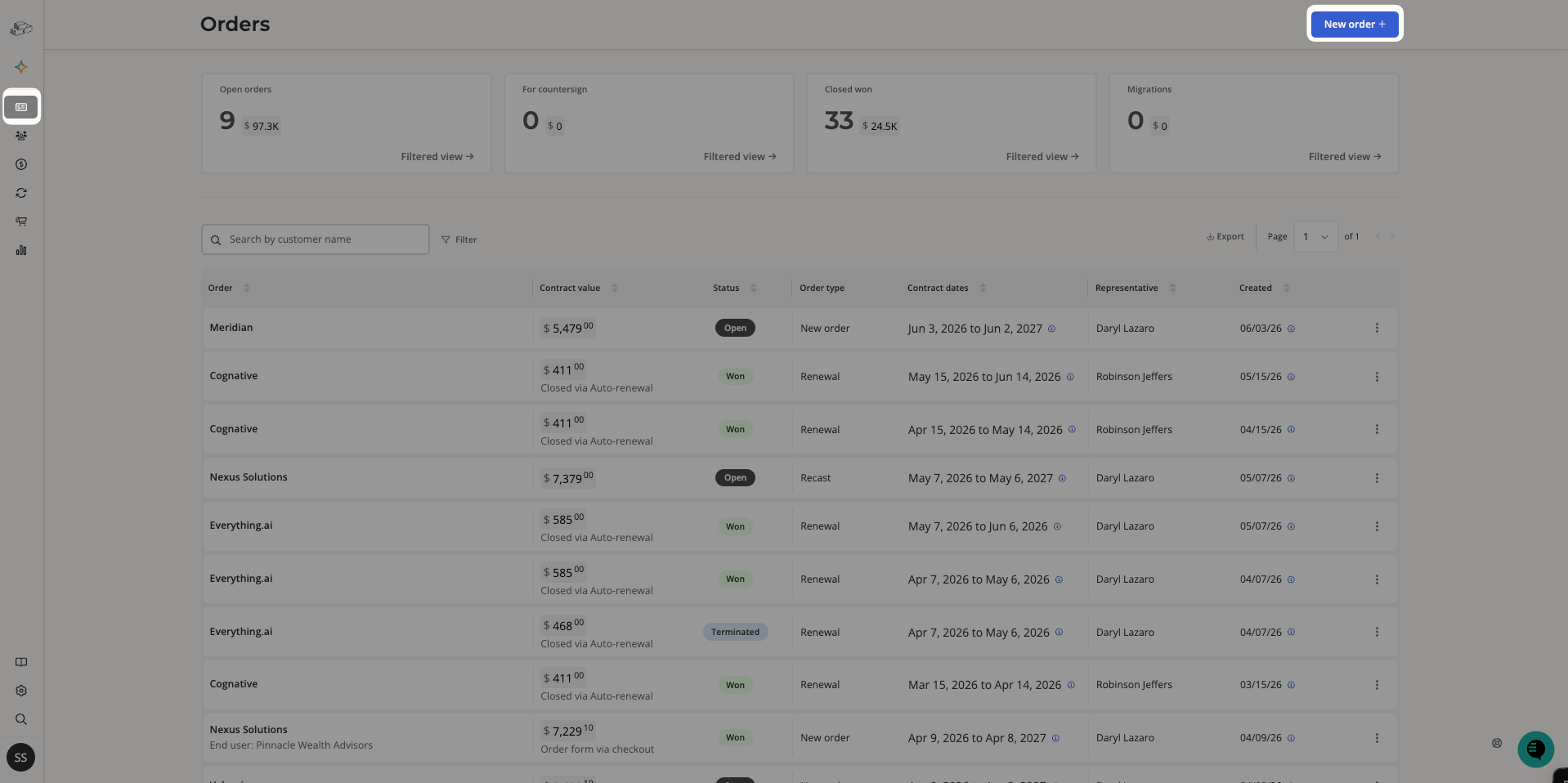
3
Link the Order to Salesforce
In the CRM Account field, search for the Account associated with the Opportunity you created in Salesforce.
Once you find the correct account, the CRM Opportunity field will be populated with all Opportunities associated with that company.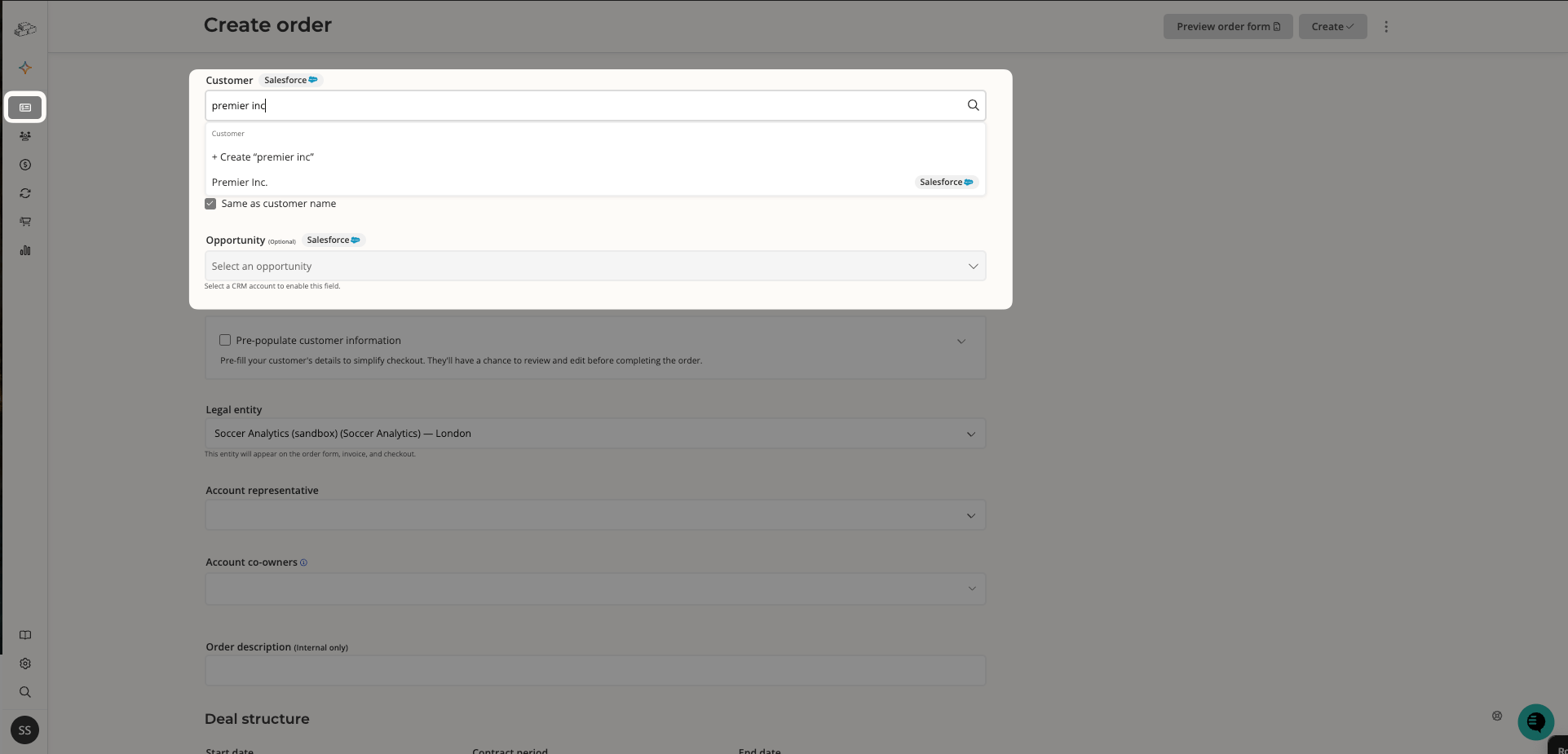
4
Verify the sync
After you save the Order, go to Salesforce and verify that the details from the Order were pushed from Salesbricks to the Salesforce Opportunity and Account.
Each time the Salesbricks Order is updated, the updates will be synced to the Salesforce Opportunity and Account.
Field Mapping
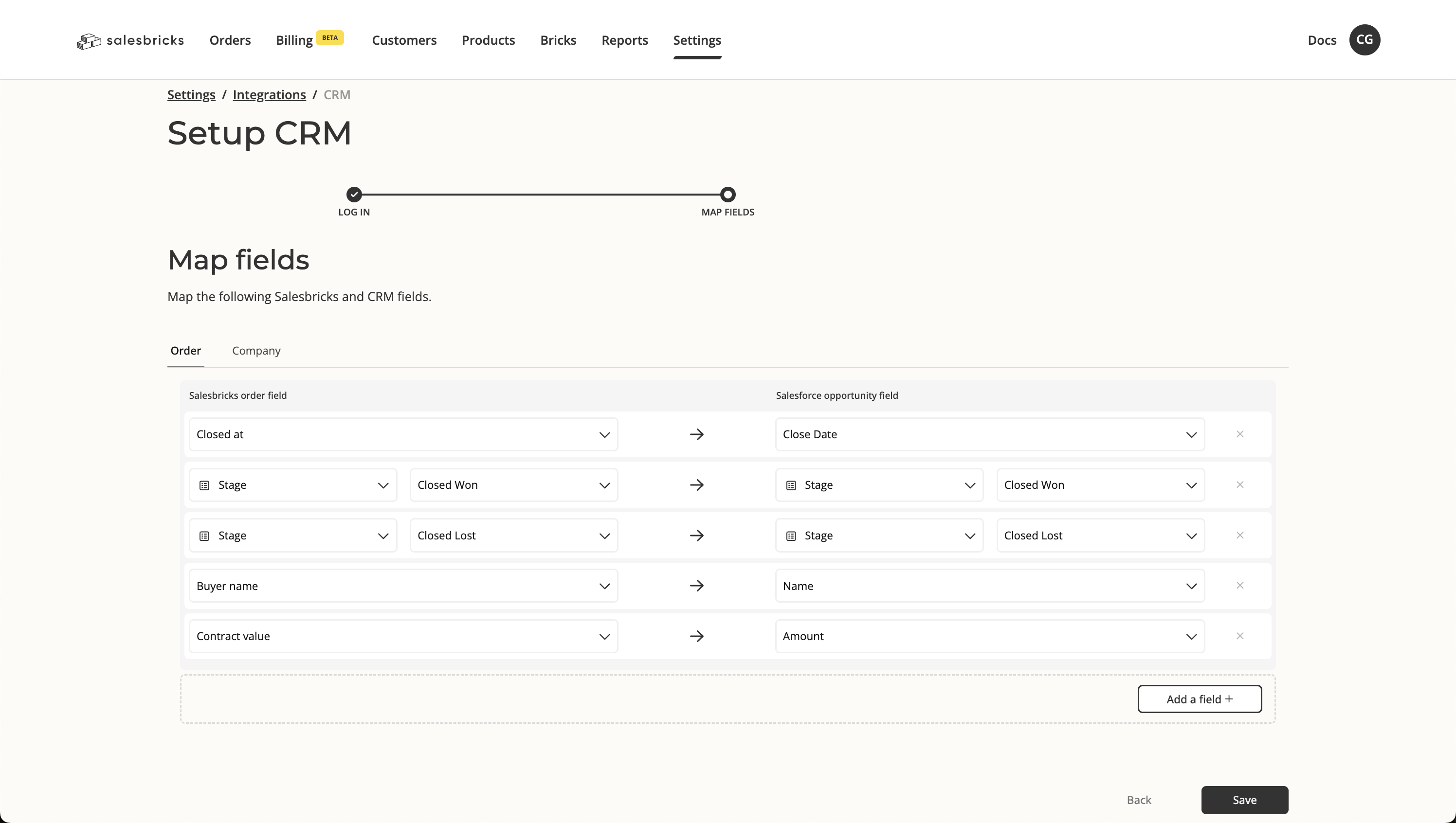
Salesbricks Order Fields
Salesbricks Order Fields
When connecting Salesbricks to your CRM, map the following Order–level fields to align data between the two systems effectively:
Salesbricks Customer Fields
Salesbricks Customer Fields
When connecting Salesbricks to your CRM, map the following Customer–level fields to align data between the two systems effectively:
Salesbricks Brick Fields
Salesbricks Brick Fields
When connecting Salesbricks to your CRM, map the following Brick–level fields to align data between the two systems effectively:
Salesbricks Order Brick Fields
Salesbricks Order Brick Fields
When connecting Salesbricks to your CRM, map the following Order Brick–level fields to align line item data between the two systems effectively:
Resources
Field Definitions
View the complete list of Salesbricks fields, data types, and definitions for Salesforce integration.
Order Builder Guide
Learn how to navigate and use the Order Builder effectively.