Before you start
You’ll need:- A ChartMogul account with Staff, Admin, or Owner role (required to create API keys)
- Salesbricks Admin access (required to access Settings)
Steps
1
Get your ChartMogul API key
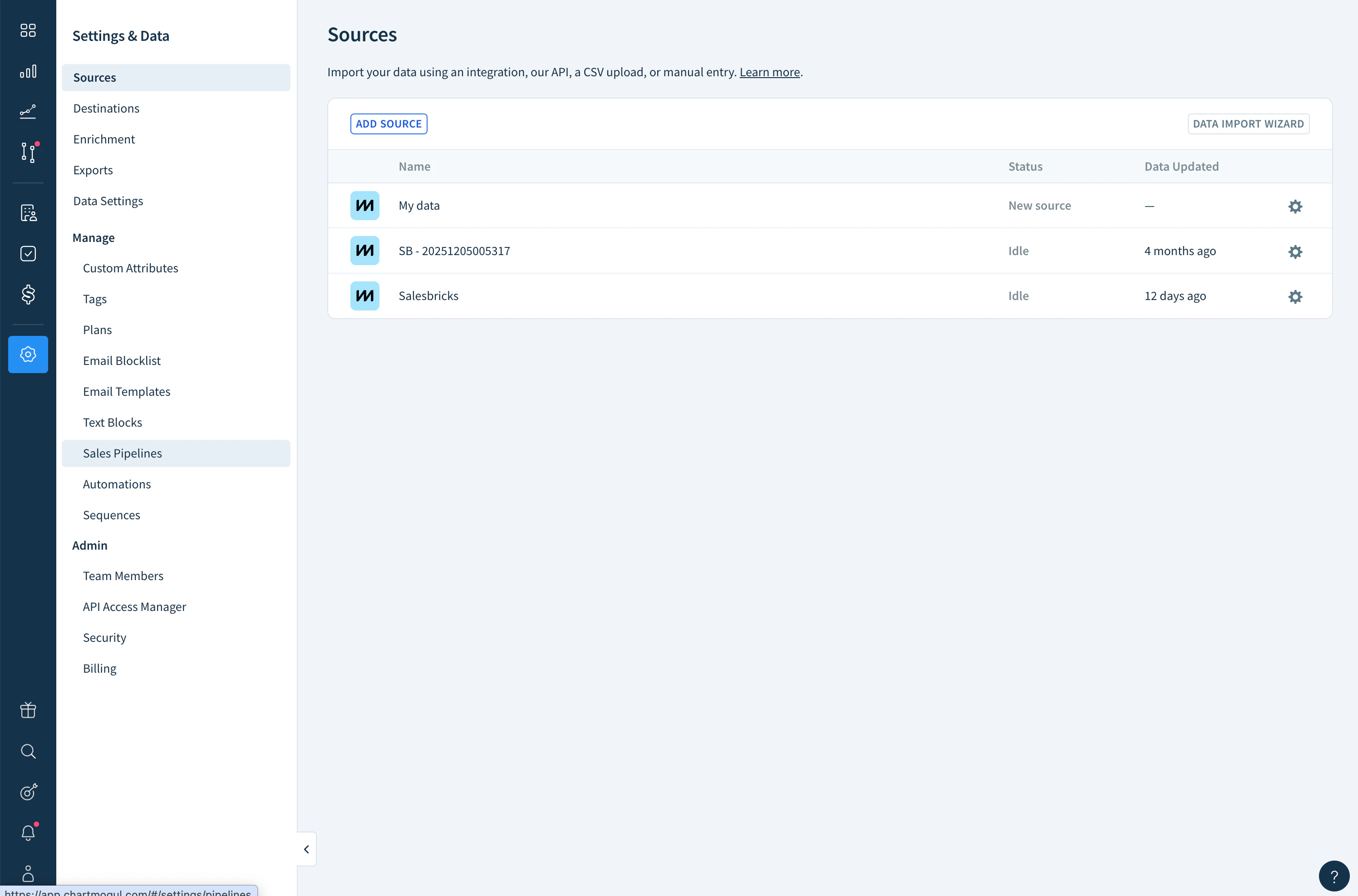
- In ChartMogul, go to Admin → API Access Manager
- Create a new read & write API key
- Copy the key — you’ll need it in the next step
2
Add the API key in Salesbricks
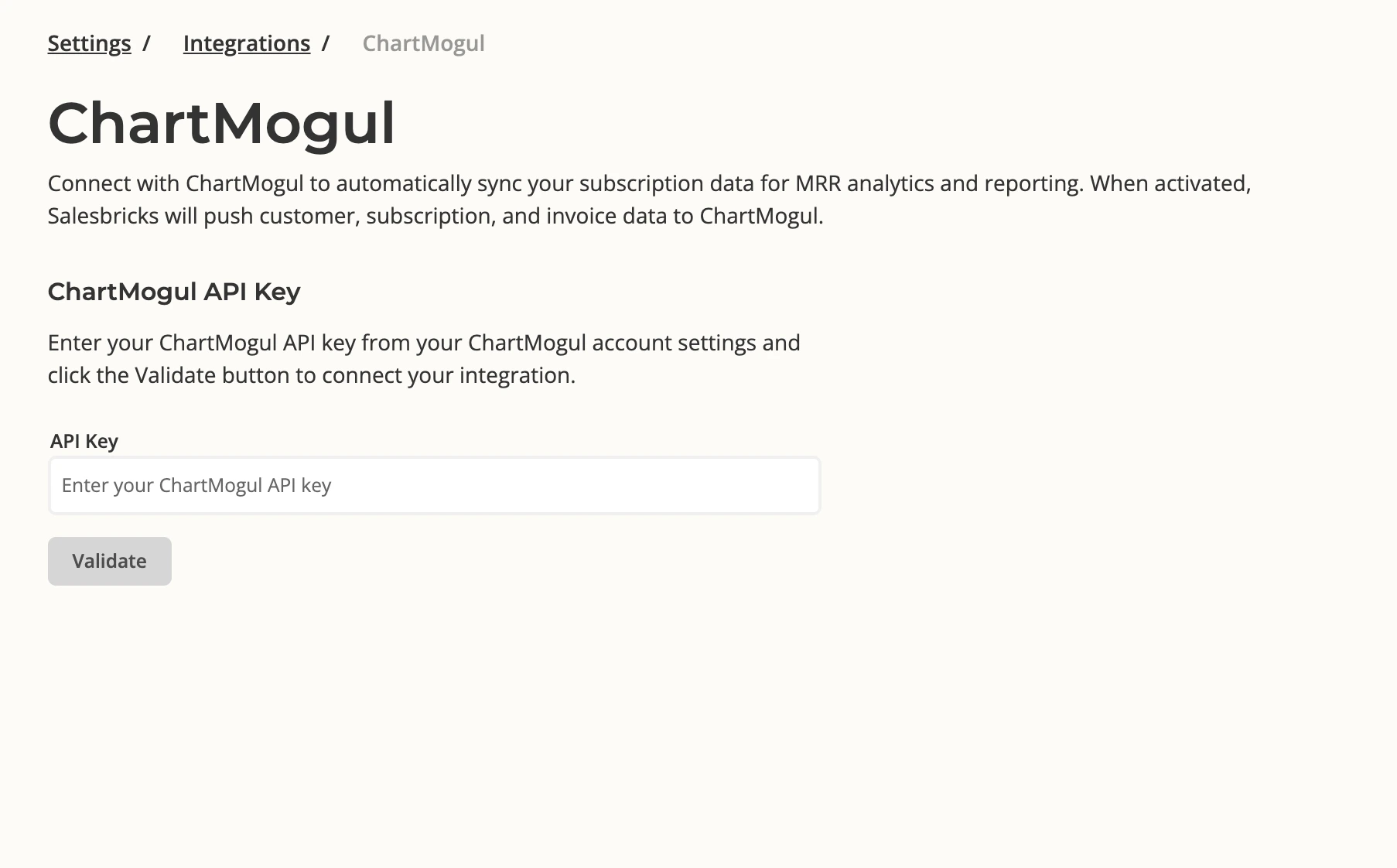
- In Salesbricks, navigate to Settings → Integrations → ChartMogul
- Paste your API key into the API Key field
- Click Validate
3
Confirm the connection
Once connected, the ChartMogul page in Salesbricks will show: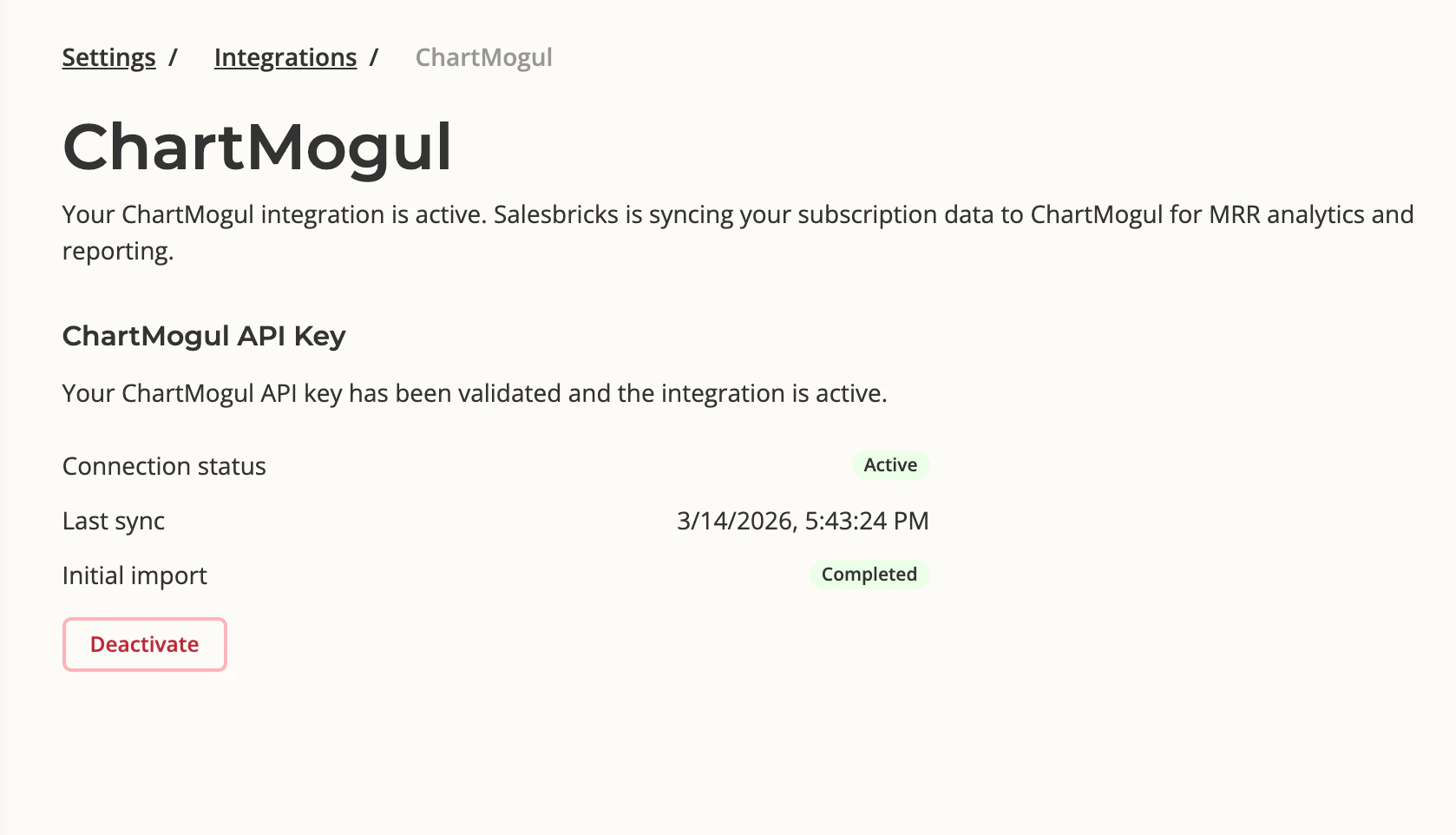
- Connection status: Active
- Last sync: timestamp of the most recent data push
- Initial import: Completed (once the historical backfill has finished)
4
Verify data in ChartMogul
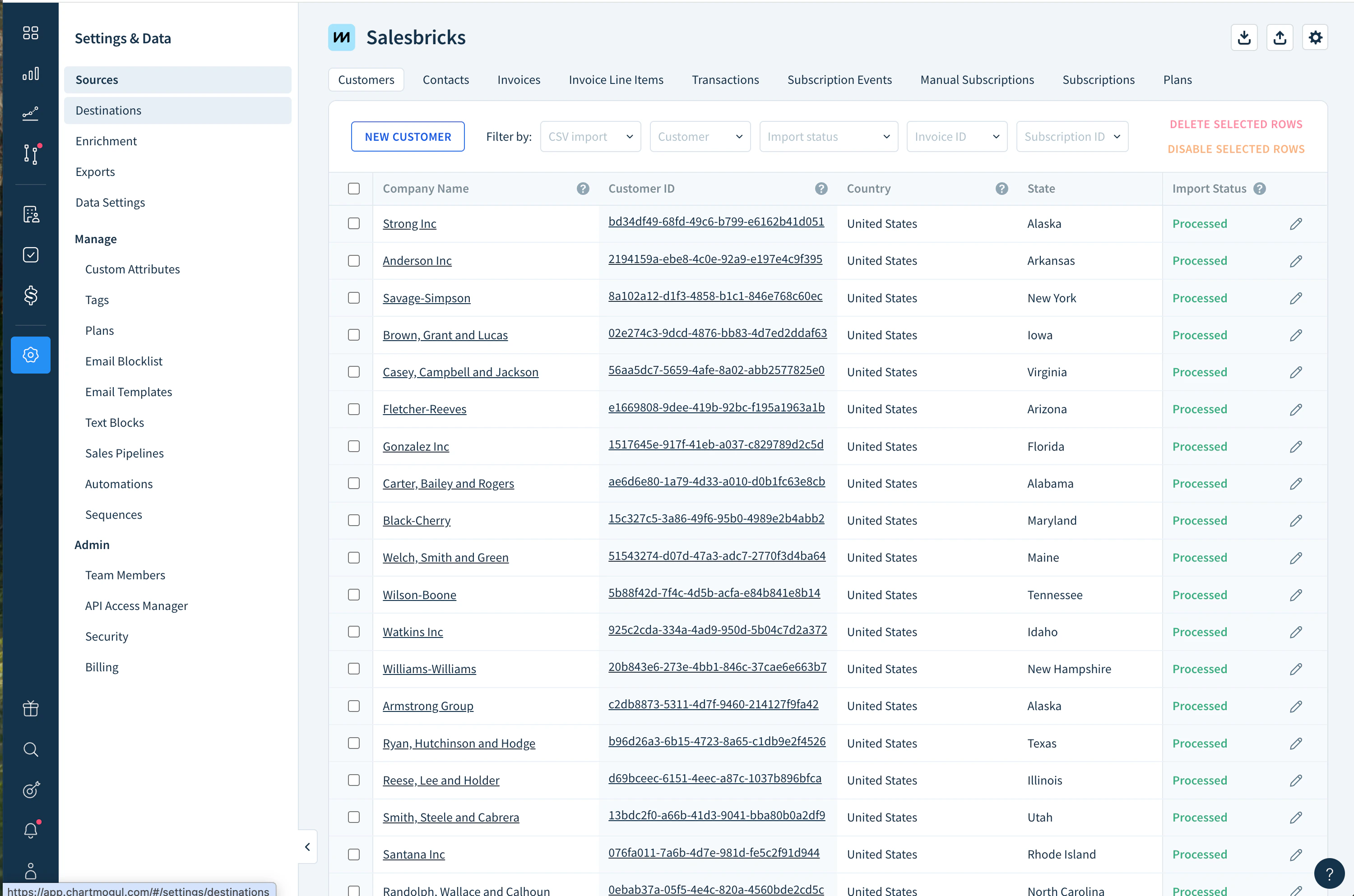
In ChartMogul, go to Settings & Data → Sources. You’ll see a Salesbricks source listed there.