This feature is currently in beta
We are actively enhancing this feature, and some functionalities may change before the official release.If you're interested in joining the beta program and sharing feedback to help us improve it, please ping us in your dedicated Slack channel, or email support@salesbricks.com.Overview
Attio is a modern, automation-first CRM platform designed for speed and simplicity. Known for its popularity among young, innovative companies (including many from Y Combinator) Attio is a fast-growing player in the CRM space. Salesbricks allows you to connect with your Attio workspace so you can:- Create a new Order in Salesbricks
- Sync metadata from the Salesbricks Order to an associated Deal in Attio
- Sync metadata from the Salesbricks Customer to an associated Company in Attio
- Establish a repeatable process for future agreements between you and your customer
- Connect your Attio workspace to Salesbricks
- Create the fields in Attio needed to host the Salesbricks data
- Map the Order fields in Salesbricks to the Deal fields you created in Attio
- Map the Customer fields in Salesbricks to the Company fields you created in Attio
- Test a Salesbricks Order with a test Attio Deal, and confirm the data is flowing properly
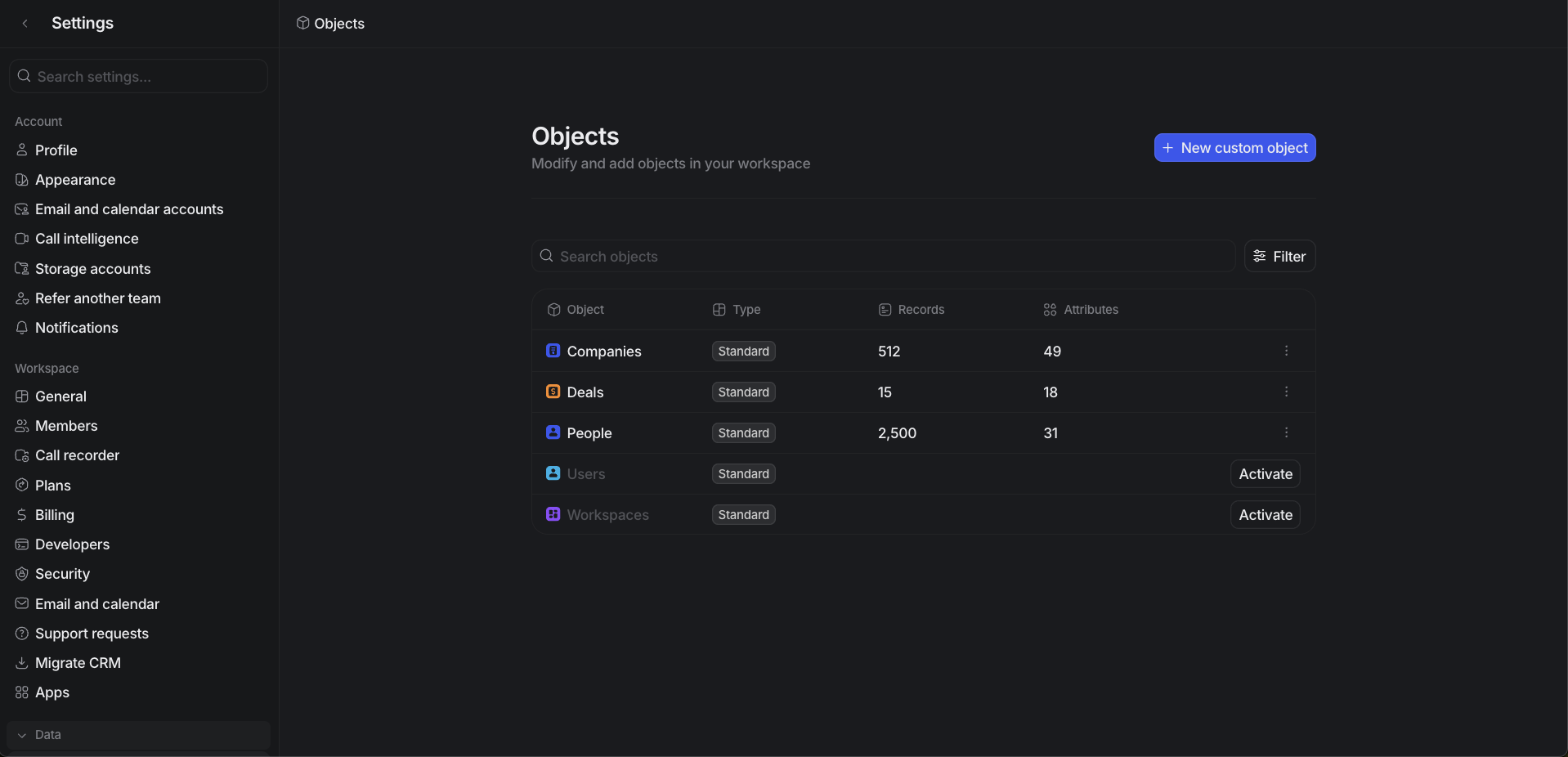
Setup Attio Custom Fields
-
Navigate to Data Settings:
- Click your workspace name in the top left
- Select “Data Settings”
-
Review and Create Attributes:
- Select either “Deals” or “Companies” object
- Review existing attributes to see if they match your needs
- If needed, click “Add attribute” to create new attributes
-
Attribute Types Available:
- Text attributes (e.g., Name, Legal Name)
- Number attributes (e.g., Total Contract Value, Expected Renewal Value)
- Select attributes (e.g., Status with options: Active, Inactive, Terminated)
- Date attributes (e.g., Customer Since Date, Next Renewal Date)
You can use existing attributes that match your needs or create new ones. Refer to the field mapping section below to determine which attributes you need and their appropriate data types.For detailed instructions on creating and managing attributes, see the Attio Attributes Documentation.
Connect Attio in Salesbricks
1. Connect Attio
1. Connect Attio
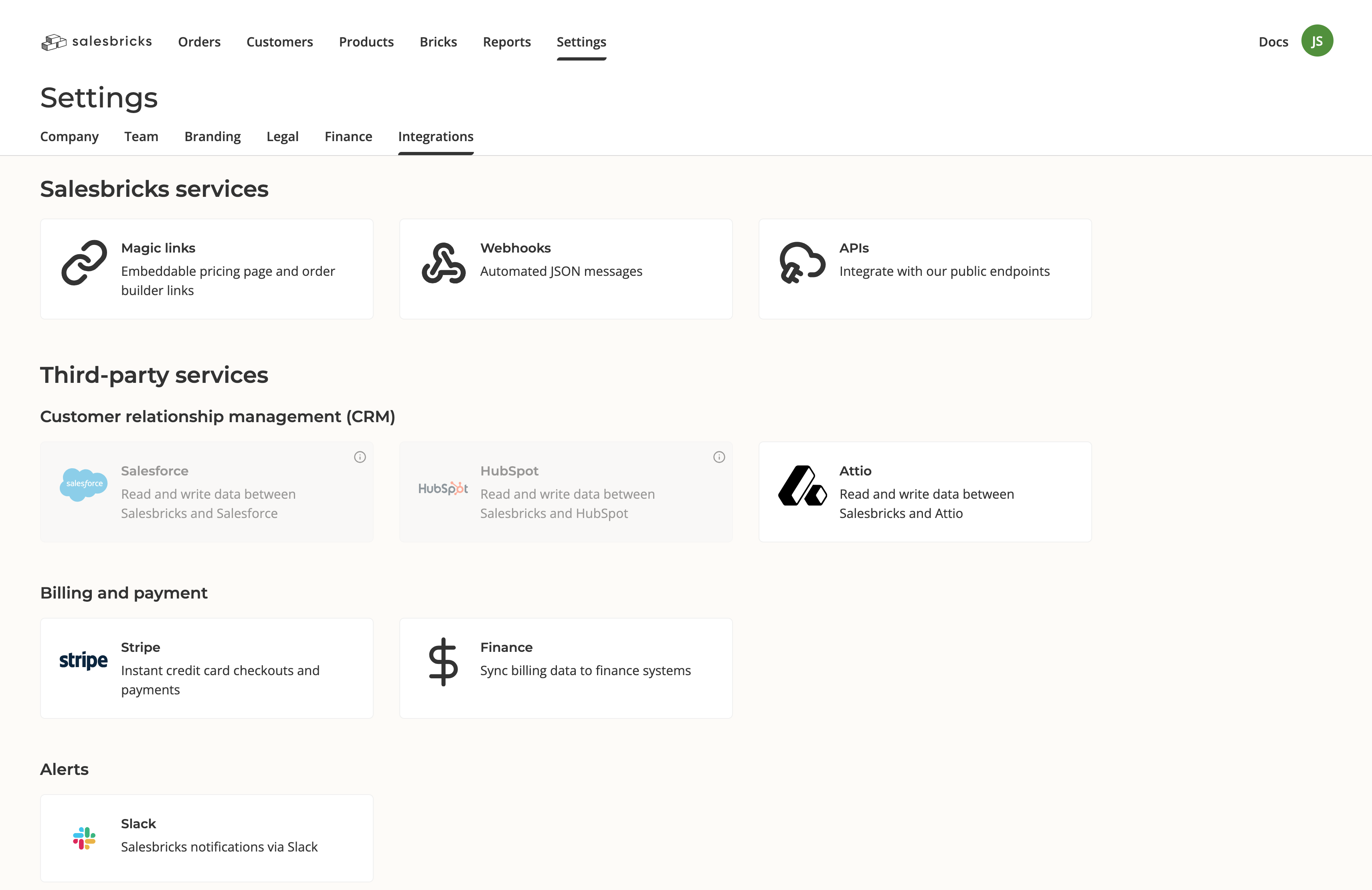
In Salesbricks, go to Settings -> Integrations and click on Attio.If this is your first time connecting Attio to Salesbricks, a modal will appear prompting you to connect your Attio account. Click “Connect.”
If you do not see Attio as a CRM option, please reach out to Salesbricks Support to enable it on your account.
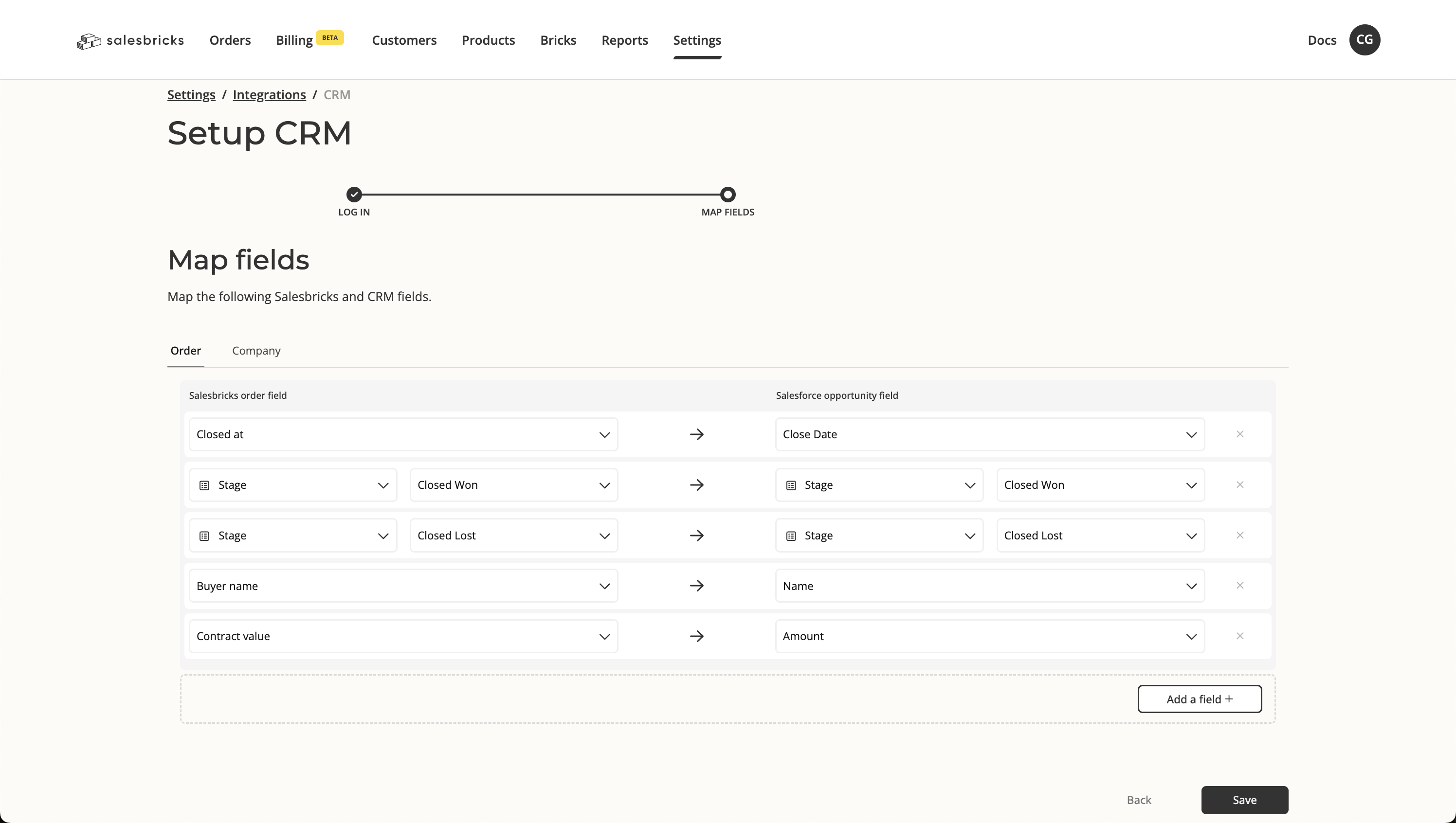
2. Map Order Fields
2. Map Order Fields
After you log in to Attio, you will be redirected back to Salesbricks.Map the fields you would like to push from Salesbricks Orders to Attio Deals.Click the “Add a field” button to add new rows, or the X icon on the right side of a row to delete it.Click “Save.”
3. Map Customer Fields
Next, map the fields you would like to push from Salesbricks Customers to Attio Companies.Click the “Add a field” button to add new rows, or the X icon on the right side of a row to delete it.Click “Save.”
4. Test the Integration
1
Create a test Deal in Attio
In Attio, create a new Deal and save it.
2
Create a new Order in Salesbricks
In Salesbricks, create a new Order.
3
Link the Order to Attio
In the CRM Company field, search for the Company associated with the Deal you created in Attio.
Once you find the correct account, the CRM Deal field will be populated with all Deals associated with that company.
4
Verify the sync
After you save the Order, go to Attio and verify that the details from the Order were pushed from Salesbricks to the Attio Deal and Company.
Each time the Salesbricks Order is updated, the updates will be synced to the Attio Deal and Company.
Field Mapping
Salesbricks Order Fields
When connecting Salesbricks to your CRM, map the following Order–level fields to align data between the two systems effectively:
| Field | Definition |
|---|---|
self_service | Indicates whether the order was placed via a self-service channel. |
stage | Represents the current phase or status of the order, indicating progression through your pipeline. |
id | A unique identifier for the order within Salesbricks, used for consistent reference across platforms. |
subscription_id | The identifier for the Salesforce subscription associated with the order. |
agreement_number | The index of the order within the subscription. |
order_type | Specifies the type of order (e.g., standard, renewal, upgrade, recast) for categorization. |
created_at | The timestamp marking when the order was created in Salesbricks. |
updated_at | The timestamp for the last update to the order, providing insight into its most recent activity. |
starts_at | Indicates when the order begins. |
ends_at | The expected end date of the order, marking its termination unless renewed. |
closed_at | The timestamp marking when the order was closed. |
point_of_contact_email | The email address of the main user or contact associated with the order. |
primary_user | The full name of the main user or contact associated with the order, typically the primary point of contact. |
metadata | An open field for additional data, custom attributes, or notes specific to the order. |
billing_schedule | The frequency or schedule for billing, such as monthly, quarterly, or annually. |
payment_terms_text | x = payment_terms_number_of_days. If x is 0, returns “Due on receipt.” Otherwise, returns “Net x” (e.g., “Net 30”). |
owner_name | The name of the account owner managing the order. |
owner_email | The email address of the account owner managing the order. |
accounts_payable_emails | Email addresses responsible for processing payments on the buyer’s side. |
arr | The Annual Recurring Revenue associated with the order, reflecting yearly revenue from subscriptions or ongoing contracts. |
contract_value | The total value of the contract over its entire duration. |
duration | The length of the contract or order term, measured in months. |
auto_renews | Indicates if the order will automatically renew upon expiration. |
buyer_name | The name of the company purchasing the order. |
currency_iso_code | The ISO currency code (e.g., USD, EUR) used in the order. |
buyer_legal_name | The official legal name of the buying company. |
total_committed_current_spend | The total contract value of the customer’s current active agreement. |
total_expected_renewal_spend | The forecasted total contract value of the customer’s next renewal agreement. |
Salesbricks Customer Fields
When connecting Salesbricks to your CRM, map the following Customer–level fields to align data between the two systems effectively:
| Field | Definition |
|---|---|
name | Customer name. |
legal_name | Customer legal name. |
status | Refers to the current customer’s status. A customer is ACTIVE if they have at least one active subscription. If the only active subscription is scheduled for termination, the status is updated to TERMINATING. If the last active subscription has terminated, the status is updated to TERMINATED.Options: Active, Terminating, Terminated, Order Needed, Scheduled, Open Order If the customer has multiple active subscriptions, the status will continue to read ACTIVE unless all subscriptions are terminating / terminated. |
customer_since_date | First subscription’s start date. |
next_renewal_date | Active subscription’s next renewal date. If there are multiple active subscriptions, gets the subscription with the earliest end date. For example: Subscription A - Mar 1, 2024 - March 1, 2025, Subscription B - March 1, 2024 - April 1, 2024. Next renewal date is April 2, 2024. |
termination_date | If all customer subscriptions have been terminated, returns the termination date of the last subscription terminated. |
churn_notes | Notes from the last terminated subscription. |
total_committed_current_spend | Sum of subscription_grand_total of all subscriptions. |
total_expected_renewal_spend | Sum of renewal_value of all subscriptions. |
primary_user | Primary user full name of the recently closed/updated order. |
product_name | Product name of the recently closed/updated order. |
total_arr | Total ARR of the recently closed/updated order. |
auto_renews | Whether the recently closed/updated order auto renews. Options: Yes, No. |
duration | Number of months of the last closed/updated order. |
billing_frequency | Billing frequency of the last closed/updated order. Options: Monthly, Quarterly, Semi-annually, Annually, All upfront. |
brick_a | All brick names will be available for mapping and can be mapped to any CRM field. The value will be the total quantity/entitlements for the mapped brick. For example: If you sell licenses and have “Starter Seat”, “Professional Seat”, “Enterprise Seat”, and “Viewer Seat” as bricks in your plans, you can map these to custom fields in your CRM to track total quantities. |
brick_b | Additional brick field for mapping to CRM custom fields. |
Salesbricks Brick Fields
When connecting Salesbricks to your CRM, map the following Brick–level fields to align data between the two systems effectively:
| Field | Definition |
|---|---|
id | A unique identifier for the brick within Salesbricks, used for consistent reference across platforms. |
name | The displayed name of the brick on the order line. |
summary | A punch description of the brick that appears in the order builder. |
code | Your internal SKU code for this offering. |
cogs | The cost of goods sold. |
sku_type | Denotes the type of brick being sold. Options: Software, Service. |
sku_schedule | The type of billing schedule associated with the brick. Options: Subscription, One-time, Milestone, Usage. |
custom_unit_text | Your custom unit of measurement for the brick. |
Salesbricks Order Brick Fields
When connecting Salesbricks to your CRM, map the following Order Brick–level fields to align line item data between the two systems effectively:
| Field | Definition |
|---|---|
name | The displayed name of the brick on the order line (uses the brick’s custom name if set, otherwise the default brick name). |
quantity | The quantity for this brick on the order. For usage SKUs this is the pre-commitment amount (or 1 if none is set); for other SKUs it is the ordered quantity (or the quantity delta when configured). |
opportunity_id | The CRM opportunity identifier linked to the order that this brick belongs to (e.g. Salesforce Opportunity.Id). |
pricebook_entry_id | The CRM price book entry ID associated with this brick and currency (e.g. Salesforce PricebookEntry.Id), used to tie the line item to the correct price book entry. |
product_id | The CRM product ID mapped to this brick in the given currency (e.g. Salesforce Product2.Id). |
sub_total | The line item value before any discounts are applied, in the order currency (0 when revenue schedule sync is enabled). |
total_discount | The total discounts applied to this brick, including line-level and contract-level discounts (e.g. sales, one-time, duration, and contract/buyout discounts), in the order currency. |
grand_total | The final total value for this brick after all discounts are applied, in the order currency (0 when revenue schedule sync is enabled). |
effective_unit_price | The effective price per unit for this brick. By default this is the net price per unit after discounts; when discount-line-item mode is enabled it becomes the gross unit price before discounts. |
effective_unit_price_without_discount | The weighted average unit price before any discounts, after tiers are applied (i.e. pure list price per unit for this brick). |
first_year_unit_price | An annualized unit price representing only the first year’s revenue for this brick, derived by slicing the total contract value into a year-one equivalent (ignores ramping). |
annual_unit_price | The annualized unit price per unit excluding contract-level discount (buyout), but including line-item discounts, normalized to a 12-month period. |
annual_unit_price_net_contract_discount | The annualized unit price per unit including all discounts, both line-item and contract-level (i.e. “net of buyout”), normalized to a 12-month period. |
duration_months | The total duration of the order that this brick belongs to, measured in whole months. |
duration_days | The total duration of the order in days, inclusive of both the start and end dates. |
Resources
Field Definitions
View the complete list of Salesbricks fields, data types, and definitions for Attio integration.
Order Builder Guide
Learn how to navigate and use the Order Builder effectively.