

Overview
A legal entity is the company that contracts with your customer. It carries a registered legal name, a headquarters address, and a tax ID, and it appears as the seller on the order form, the checkout page, and the invoice. Most sellers only ever need one, and Salesbricks uses your company details for it automatically. You need more than one when you sell through separate registered companies, such as a US parent and a UK subsidiary, or entities registered for tax in different jurisdictions. Every order and every invoice records exactly one issuing entity. When no entity is selected, both fall back to your company details.If you don’t see a Legal entity field on the order builder, multiple legal entities aren’t
enabled for your account yet. Reach out to us in your dedicated Slack channel.
Requesting an entity
Legal entities are configured by Salesbricks rather than in your settings. To add one, reach out to us in your dedicated Slack channel with:
Where the name and legal name differ, documents render both as
Legal Name (Name), for example Acme Software Limited (Acme UK). Where they match, only the one name is shown.
Once an entity has issued an order or an invoice, it can’t be deleted. Send us the corrected
details and we’ll update the entity in place.
Selecting an entity on an order
1
Open the order builder
Start a new order, or open a draft order and continue editing it.
2
Choose the legal entity
Below the customer information section, open the Legal entity selector and pick the entity that will contract with this customer.Each option reads as the entity name followed by its headquarters, for example 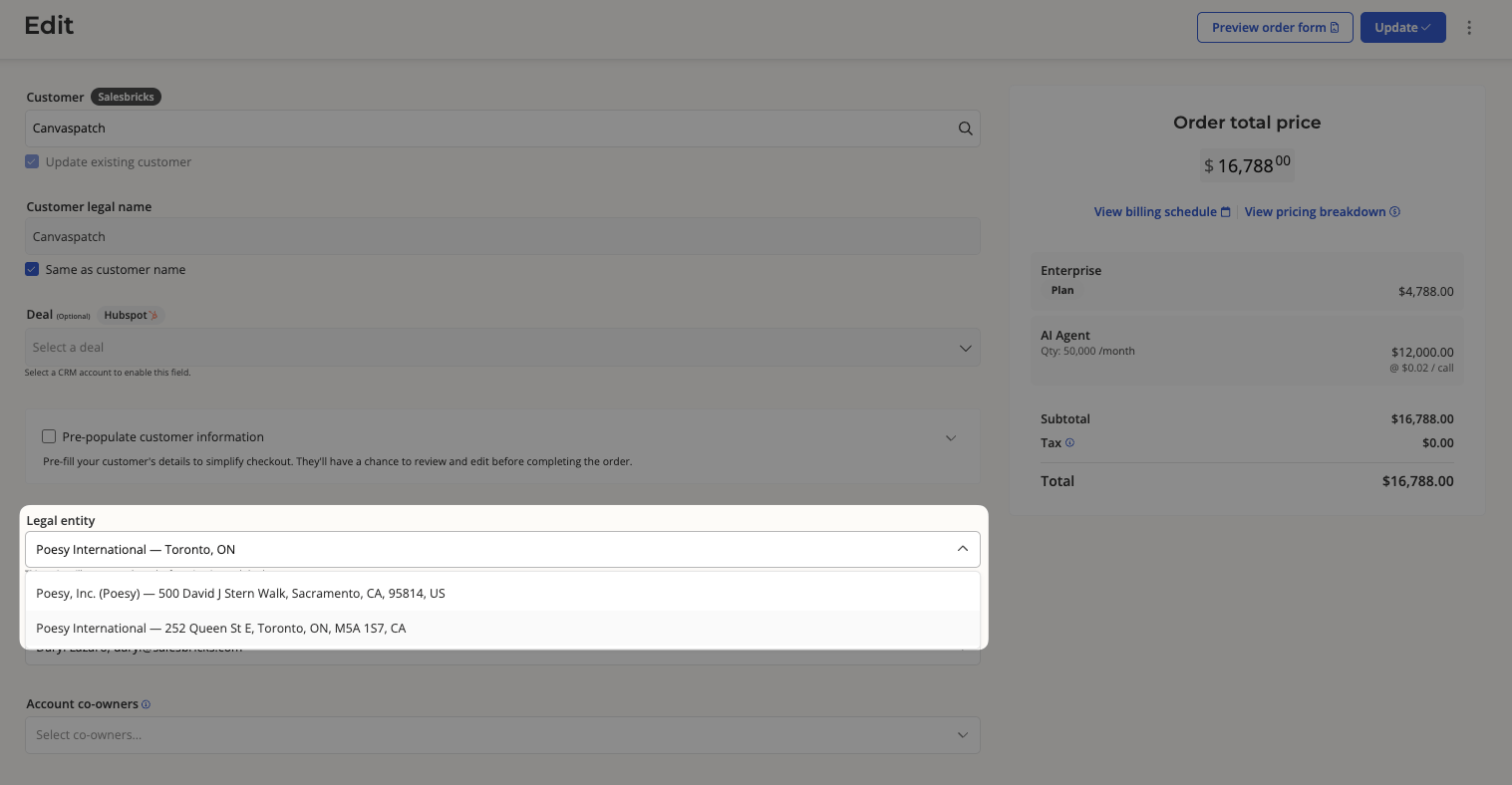
Poesy International - Toronto, Ontario.3
Leave it on Seller default to use your company details
The first option, Seller default, is selected on every new order. It issues the order under your account’s company name, address, and tax ID rather than a specific entity.
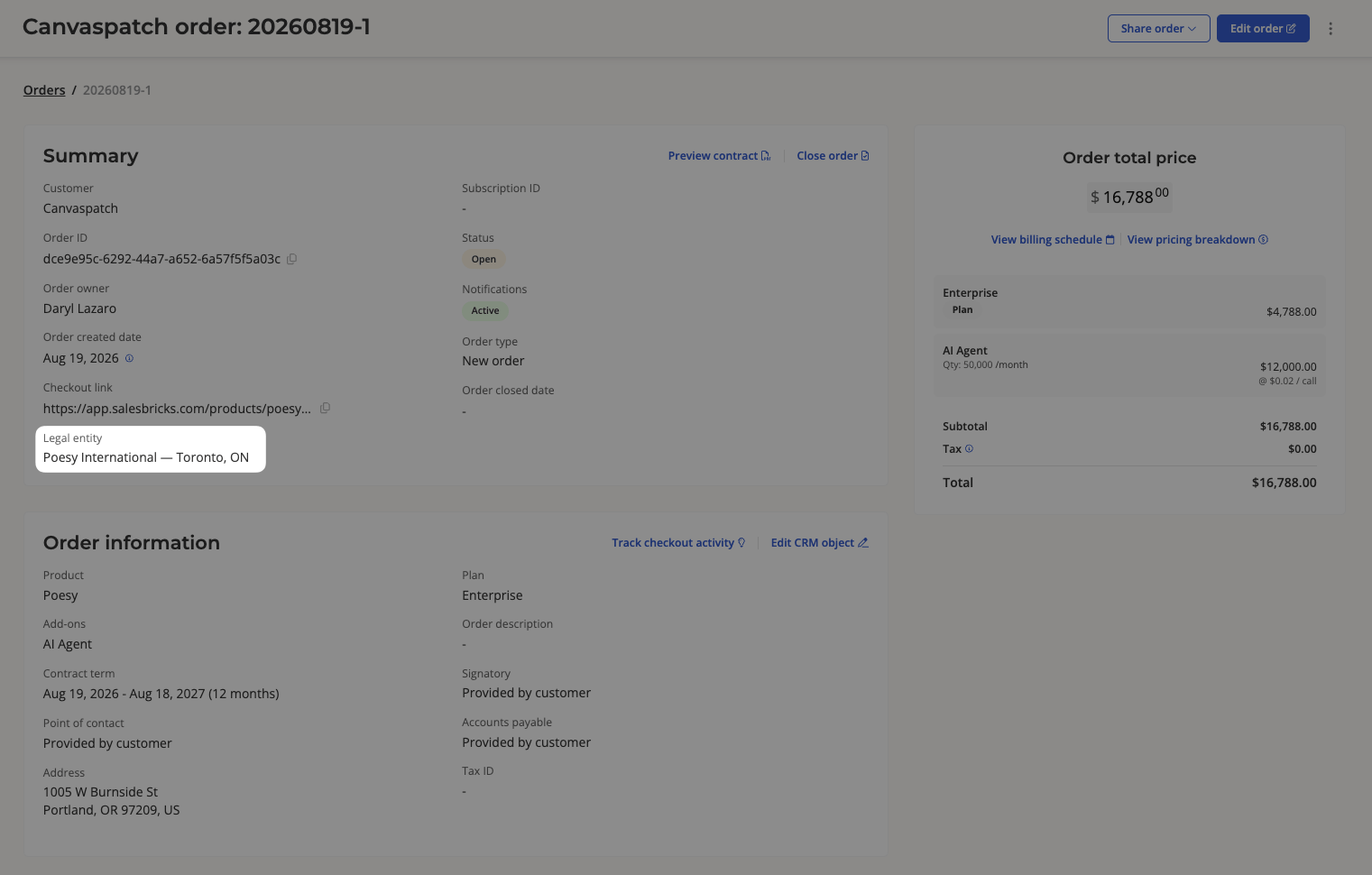
Amendments and renewals inherit the legal entity of the order they’re based on, so the Legal
entity field is read-only on those order types. To contract an existing customer under a
different entity, build a new order.
Selecting an entity on an invoice
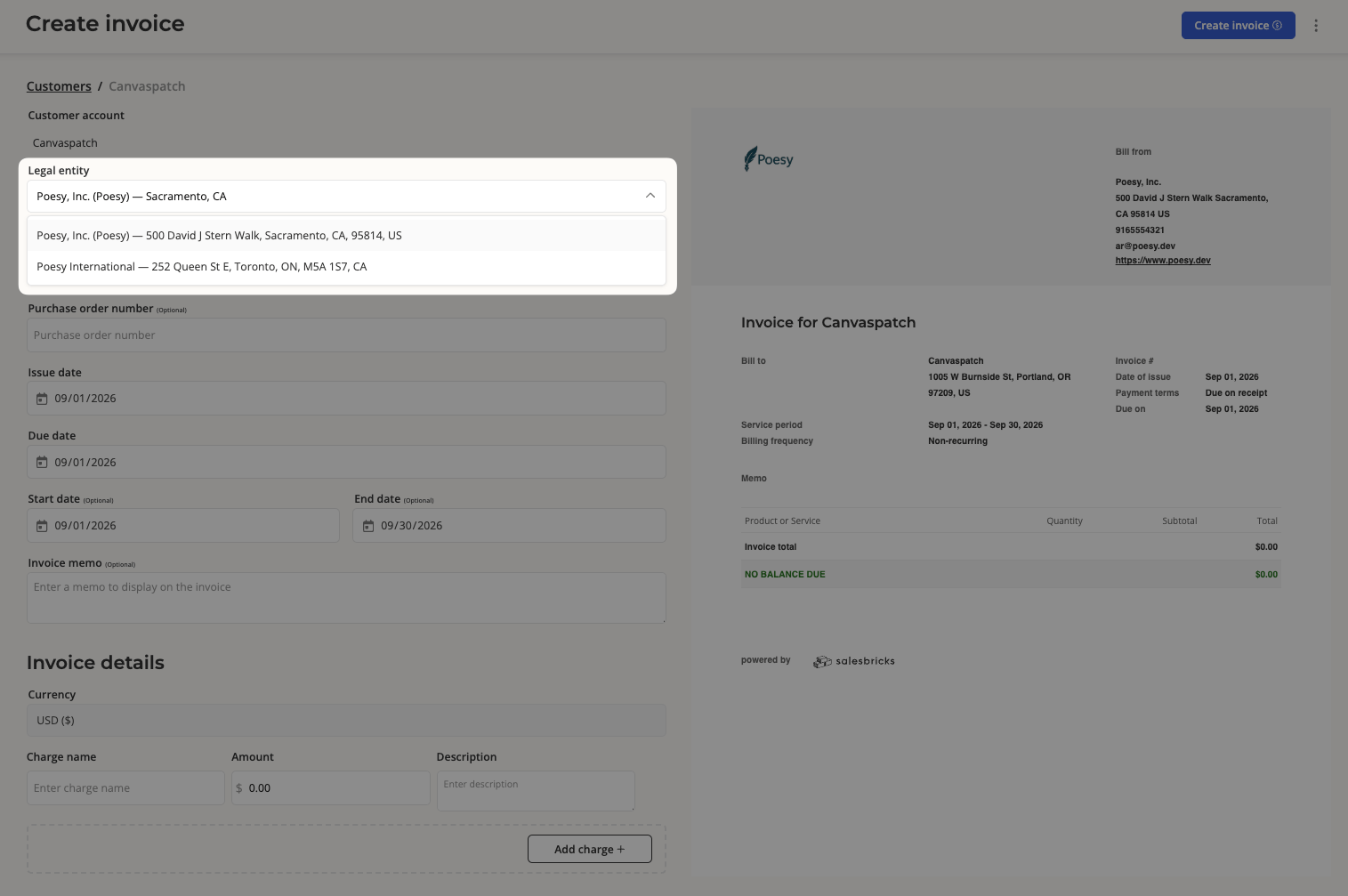
- Invoices attached to an order inherit that order’s legal entity. There’s nothing to select.
- Standalone invoices, meaning one-off invoices not tied to an order, carry their own Legal entity selector, with the same Seller default option.
What changes downstream
Selecting an entity changes who the customer sees, and how the deal is taxed.API
Subscriptions created through the REST API can specify which entity issues them.List your legal entities
GET /legal-entities returns your entities and their IDs.
cURL
JSON
Issue a subscription under an entity
Pass the ID aslegal_entity_id when you create a subscription. Omit it to use your company details.
cURL
400.